Scenario guide · iPad
Full-screen HomeKit doorbell
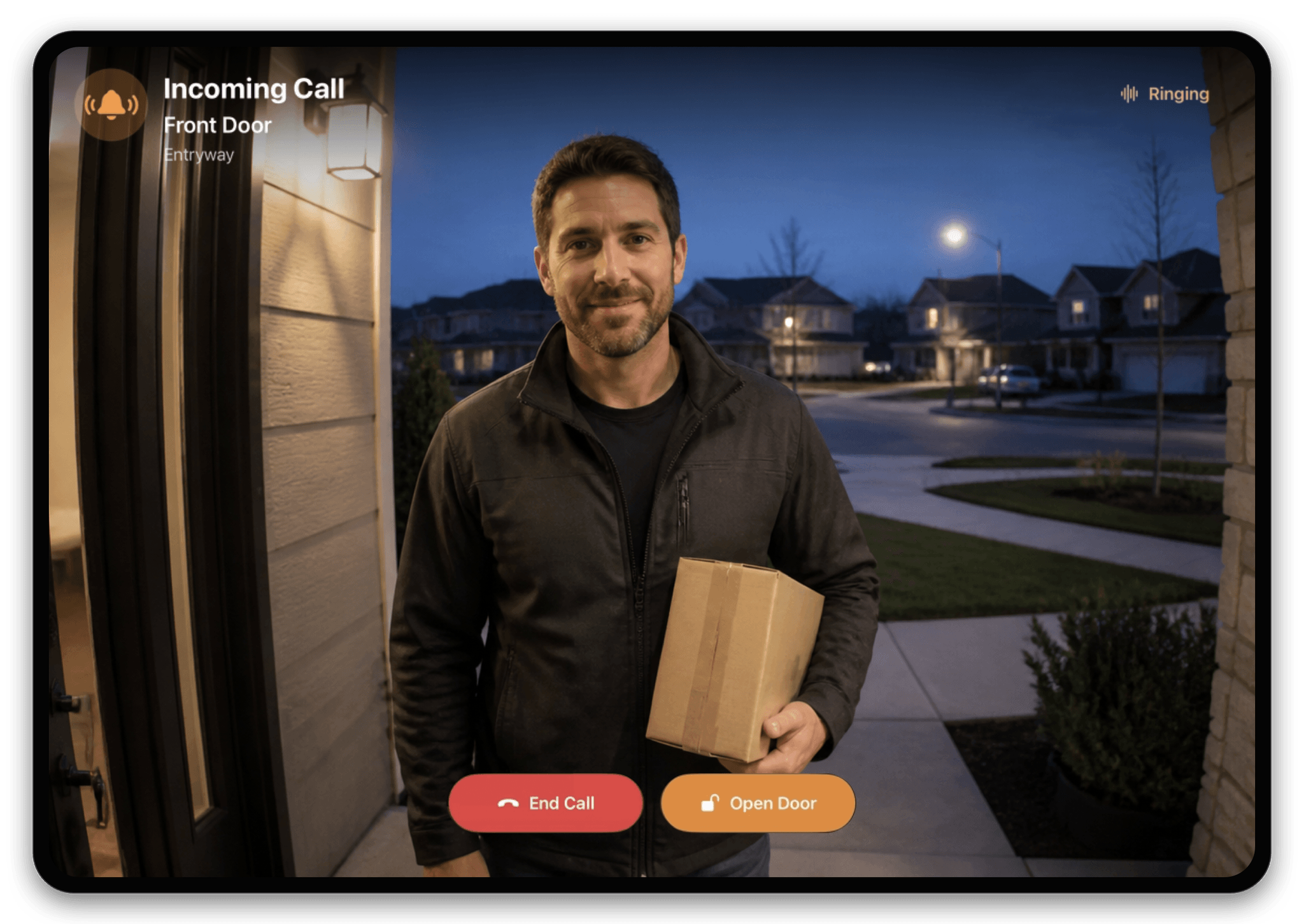
Turn a wall-mounted iPad into a front-door call screen. When HomeDeck is active, a compatible HomeKit doorbell opens full screen automatically, shows live video or the latest snapshot, and keeps supported answer, talk, end-call, and door controls together.
What this scenario solves
Turn a wall-mounted iPad into a front-door call screen. When HomeDeck is active, a compatible HomeKit doorbell opens full screen automatically, shows live video or the latest snapshot, and keeps supported answer, talk, end-call, and door controls together.
What you need
- A compatible iPad running iPadOS 18 or later
- An Apple Home already configured with compatible accessories
- A compatible HomeKit video doorbell available to the current Apple Home user
What to do
Complete the setup on iPad, then test it in the position where the screen will be used.
- Confirm the video doorbell works in Apple Home and grant HomeDeck camera access. Keep HomeDeck active on the iPad, ring the doorbell, and verify that the full-screen incoming-call view appears with live video or the latest snapshot.
- Test every action exposed by the accessory: answer or end the call, talk to the visitor, and use the supported door control. Repeat the test from the wall-panel position and confirm that every important action is readable and reachable.
- Open the result on the listed device, test every visible control, and make sure people using the shared screen can see only what you intended.